Exporting your song
Get your song out of Staveroll as sound, a MIDI file, sheet music or a project file.
Export menu
Open the Export menu in the top bar.
Each item in the menu has a short hint line under it. Downloaded file names start with the app's name, followed by the kind of export (or, for a part, the track name).
| Choice | What you get |
|---|---|
| WAV | Whole song as one audio file, saved as a .wav file. You see "Rendering…" while it works, then "WAV saved to your downloads". |
| MIDI | Notes only, for other music software, saved as a .mid file |
| Score | Sheet music to view or print (see below) |
| Part… | One instrument's part for a player, as MusicXML, MIDI, a printable score or a .wav file. See About part export. Free. |
| Stems | One audio file per track (Pro), in a .zip of .wav files, with a "Stems saved to your downloads" message when it is done. This is a Pro feature. Pro is planned but not available yet, so the Stems button shows the upgrade dialog for now. |
Get the sheet music (PDF or MusicXML)
- Open the Export menu and choose Score.
What you should see: the full score of your song, every track (there is no track choice here; to print one track use the Score panel, see Notation and printing), with three buttons: "Download MusicXML", "Print / PDF" and "Close".
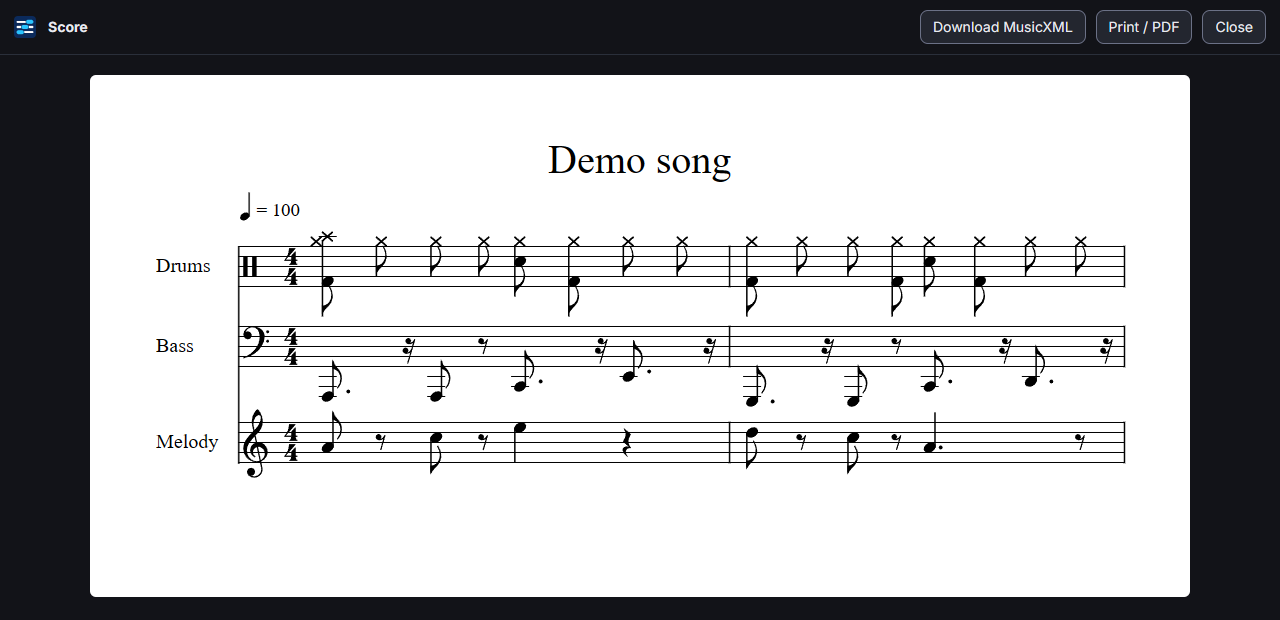
- Choose Download MusicXML to open the song in other notation programs (a .musicxml file).
- Choose Print / PDF to print, or to save a PDF using your browser's print dialog.
On the free plan the score and MusicXML leave out chords, lyrics and dynamics. They are Pro, which is planned but not available yet.
Limits: if the score cannot be drawn on your device, a message says so and the MusicXML download still works. See Limitations.
About part export
Use this to give one player their own part.
- Open the Export menu and choose Part…. The Export a part dialog opens.
- In Track, pick a track.
- For a transposing instrument, pick a Pitch (see below).
- Choose MusicXML, MIDI, Score / PDF or WAV.
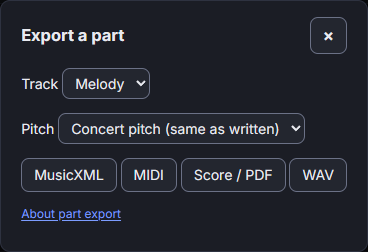
You should see a message such as "Exported the part as MusicXML." and a .musicxml or .mid file download for that one track. Score / PDF opens the score view; use its Print / PDF button to print or save a PDF. WAV shows "Rendering
WAV is the audio of that track alone, as it sounds, in 16-bit stereo. It is always at concert pitch, so the Pitch choice does not apply to it.
Part export is free. It makes one track per export, so there is no bundle of all parts. Stems, which exports every track at once as a zip, is a different feature and is still Pro.
Written or concert pitch
Some instruments are written higher or lower than they sound. For these the dialog offers:
- Written pitch (for the player), the default. Notes and key are shifted so the player reads the right notes.
- Concert pitch (as it sounds). Nothing is shifted.
For instruments that are not transposed, the choice reads "Concert pitch (same as written)".
The written-pitch shift, in semitones up, is: soprano sax, clarinet and trumpet +2; alto sax +9; tenor sax +14; baritone sax +21; French horn and English horn +7; piccolo -12; guitars and basses +12. Every other instrument is the same in both.
Limits
- Chord symbols are left out of a transposed part.
- If a shifted note would go outside the range MIDI allows, the export is refused with "Some notes would go out of range when transposed. Choose concert pitch."
- Drum tracks have no pitch option; the Pitch row is hidden.
- With no tracks, you see "Add a track first."
- Files are named after the app and the track. We have not yet checked how exported files play or look in other notation programs.
Save the project file
Open the File menu and choose Save to download your project file. Choose Open to load one again. See Getting started for backups.
Import a MIDI file
Importing replaces the song that is open. It does not add to it. Save or download a backup first (see Saving and projects).
- Open the File menu and choose Import MIDI.
- Pick a
.midfile. - If a song is open, you are asked "Importing a MIDI file replaces the current song. Continue?" Choose OK to go on.
- You are asked "Snap imported notes to the detected grid?" every time. Choose OK to snap the notes to the grid it finds, or Cancel to keep their exact timing.
You should see a message "Imported
The message may add warnings: the tempo was kept within 40 to 240 BPM, a time signature the app does not support was treated as 4/4, or a time-signature change that did not start on a bar line was ignored. If the file cannot be read you see "Could not import MIDI: …" and the reason, for example that this kind of timing is not supported.